Running Google Business and Google Ads separately from your CRM means switching between platforms, losing track of which leads came from which campaign, and missing review notifications. Vantage CRM lets you connect both accounts so you can manage your Google presence, respond to reviews, and track ad-generated leads — all without leaving your dashboard.
Quick Overview
Both integrations are found under Settings → Integrations. Google Business Profile connects via OAuth (one-click sign-in), and Google Ads connects through a Customer ID. Once linked, you'll see reviews, ad metrics, and lead attribution directly inside Vantage CRM.
Why Connect Google to Your CRM?
Most businesses manage their Google presence in one tab, their ads in another, and their CRM in a third. That's three platforms, three logins, and zero connection between them. Integrating Google into Vantage CRM eliminates the gaps.
- Respond to Reviews Instantly: Get notified of new Google reviews inside your CRM and reply without opening a separate tab. Fast responses boost your ranking and show customers you care
- Track Ad-Generated Leads: See exactly which Google Ads campaigns are driving leads into your pipeline. Know your true cost-per-lead and ROI without spreadsheets
- Manage Everything in One Place: Stop juggling multiple platforms. Update your business info, monitor ad spend, and manage customer interactions from a single dashboard
- Automate Review Requests: Trigger automated review request messages to happy customers, funneling them directly to your Google Business Profile
- Better Reporting: Combine ad data with CRM data to see the full picture — from click to close. Understand which keywords and campaigns generate actual revenue, not just clicks
Before You Start
Make sure you have the following ready before connecting your Google accounts:
For Google Business Profile
- A verified Google Business Profile
- Owner or Manager access to the profile
- The Google account email you use to manage it
For Google Ads
- An active Google Ads account
- Admin access to the Ads account
- Your Google Ads Customer ID (found in the top-right corner of Google Ads)
Important
Make sure you're logged into the correct Google account in your browser before starting the connection process. If you have multiple Google accounts, Vantage CRM will connect to whichever one is currently active in your browser session.
Connecting Google Business Profile
Follow these steps to link your Google Business Profile to Vantage CRM:
Go to Settings
From the left sidebar, click on "Settings" (gear icon at the bottom of the menu).
Open Integrations
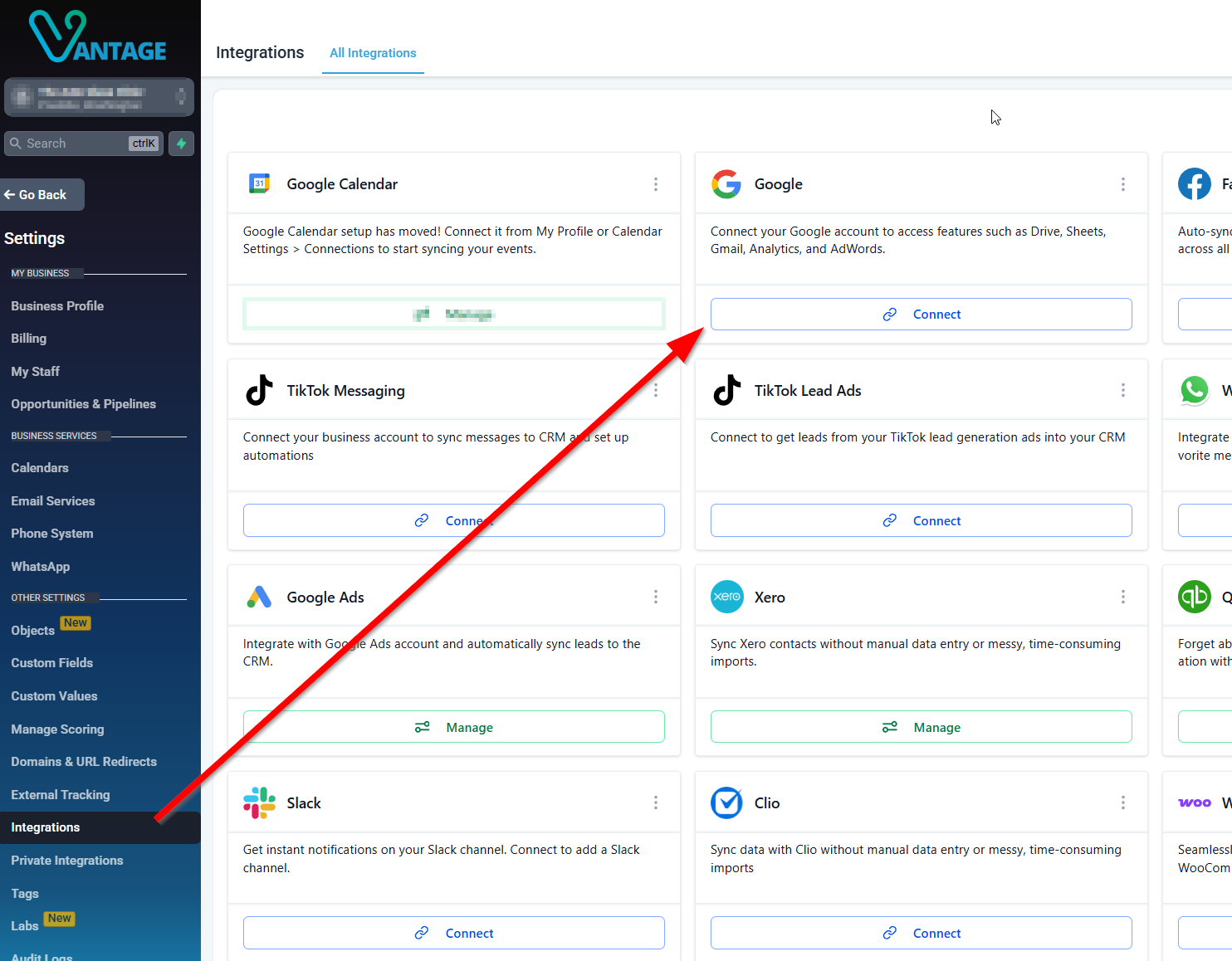
Click on "Integrations" in the settings menu. This shows all available third-party connections.
Find Google Business Profile
Scroll down or search for "Google Business Profile" (it may also appear as "Google My Business"). Click on it to open the integration settings.
Settings → Integrations → Google Business Profile
Click "Connect"
Click the "Connect" button. A Google sign-in window will pop up asking you to authorize the connection.
Sign In & Grant Permissions
Select the Google account that manages your Business Profile. Review the permissions requested and click "Allow". Vantage CRM needs access to read and respond to reviews, update business info, and pull insights.
Select Your Business Location
If you manage multiple locations, choose which business profile(s) you want to connect. You can connect multiple locations if needed.
Confirm the Connection
Once authorized, you'll see a green "Connected" status. Your Google Business Profile data will begin syncing within a few minutes.
Pro Tip
After connecting, head to Reputation Management in the left sidebar to see your reviews. You can set up automated review request campaigns that send SMS or email messages to happy customers with a direct link to leave a Google review.
What You Can Do with Google Business in Vantage CRM
Once your Google Business Profile is connected, here's what you can do without leaving your CRM:
Monitor & Reply to Reviews
See all new reviews as they come in. Reply directly from your CRM dashboard — no need to open Google separately.
Automate Review Requests
Set up automated SMS or email campaigns that ask satisfied customers to leave a review. Trigger them after appointments, purchases, or completed services.
Track Review Trends
See your average rating over time, review volume, and response rate. Identify patterns and address negative feedback before it becomes a trend.
Get Instant Notifications
Receive real-time alerts when a new review is posted so your team can respond quickly — especially to negative reviews that need immediate attention.
Connecting Google Ads
Follow these steps to link your Google Ads account to Vantage CRM:
Go to Settings → Integrations
Navigate to Settings → Integrations, the same page where you connected Google Business Profile.
Find Google Ads
Search for or scroll to "Google Ads" and click on it.
Settings → Integrations → Google Ads
Click "Connect"
Click the "Connect" button. A Google sign-in window will appear.
Sign In & Authorize
Select the Google account linked to your Google Ads. Review the permissions and click "Allow" to grant Vantage CRM access to your ad account data.
Enter Your Customer ID
Enter your Google Ads Customer ID. You can find this in the top-right corner of your Google Ads dashboard — it looks like 123-456-7890. If you manage multiple accounts, enter the specific account ID you want to connect.
Confirm & Sync
Click "Save" or "Confirm". Your Google Ads data will begin syncing. Initial data import may take a few minutes depending on your account size.
Pro Tip
If you use a Google Ads Manager Account (MCC) to manage multiple client accounts, you can connect at the manager level to access all sub-accounts. Just use the Manager Account's Customer ID during setup.
What You Can Do with Google Ads in Vantage CRM
Once Google Ads is connected, your CRM becomes your ad command center:
View Ad Performance
See impressions, clicks, cost-per-click, and conversions for all your campaigns directly inside Vantage CRM's reporting dashboard.
Track Lead Attribution
Know exactly which ad campaign, ad group, or keyword generated each lead in your pipeline. See the full journey from ad click to closed deal.
Calculate True ROI
Combine ad spend data with actual revenue data from your CRM to calculate real return on investment — not just cost-per-click, but cost-per-customer.
Optimize Spend
Identify which campaigns are generating high-quality leads vs. wasting budget. Shift spend to your best-performing keywords and audiences.
Tracking Ad Performance in Your CRM
After connecting Google Ads, you can track performance in two key places inside Vantage CRM:
1. The Reporting Dashboard
Navigate to Reporting in the left sidebar. You'll find a dedicated Google Ads section showing:
- Campaign Overview: Total impressions, clicks, and conversions for each campaign
- Cost Metrics: Total spend, cost-per-click (CPC), and cost-per-conversion
- Date Range Filters: View performance for any time period — today, this week, this month, or custom ranges
- Trend Charts: Visual graphs showing performance over time so you can spot trends and drops quickly
2. Individual Contact Records
When a lead comes in from a Google Ad, the contact record in your CRM will show the source attribution — including which campaign, ad group, and keyword drove the click. This means when your sales team opens a lead, they can see exactly how that person found you.
Troubleshooting Common Issues
Running into problems? Here are the most common issues and how to fix them:
"Connection Failed" or Authorization Error
- Make sure you're signed into the correct Google account in your browser
- Clear your browser cache and cookies, then try again
- Disable browser extensions (especially ad blockers) that may block the OAuth popup
- Try using an incognito/private window
Google Business Profile Not Showing Up
- Verify that your Google Business Profile is claimed and verified
- Confirm you have Owner or Manager access (not just "Communications Manager")
- Wait a few minutes — the initial sync can take 2-5 minutes to pull in data
Google Ads Data Not Syncing
- Double-check that your Customer ID is correct (format: 123-456-7890)
- Make sure you have Admin access to the Google Ads account
- If using an MCC account, ensure the sub-account is properly linked
- Disconnect and reconnect the integration if data hasn't appeared after 15 minutes
Reviews Not Appearing in CRM
- Check that you selected the correct business location during setup
- Go to Reputation Management in the sidebar — reviews appear there, not in the main dashboard
- New reviews may take up to 10 minutes to sync after being posted
Best Practices
Get the most out of your Google integrations with these tips:
- Respond to Reviews Within 24 Hours: Google's algorithm favors businesses that respond quickly. Set up notifications in Vantage CRM so your team never misses a new review
- Use UTM Parameters: Add UTM tags to your Google Ads landing page URLs so Vantage CRM can track exactly which campaign and keyword generated each lead
- Set Up Automated Review Campaigns: Create an automation that triggers a review request 24-48 hours after a successful appointment or purchase. Timing is key — ask when the experience is still fresh
- Review Ad Data Weekly: Check your Google Ads performance in the CRM reporting dashboard every week. Look for campaigns with high spend but low conversions and pause or adjust them
- Tag Ad-Generated Leads: Use tags or custom fields to mark leads that came from Google Ads. This makes it easy to filter, segment, and measure your ad-generated pipeline separately
- Don't Forget Negative Reviews: Always respond to negative reviews professionally and offer to resolve the issue. A thoughtful response to a 1-star review can actually build trust with potential customers who read it
Pro Tip
Create a saved reply snippet for common review responses (e.g., "thank-5star" and "respond-negative"). This way your team can respond to reviews in seconds while still sounding personal and professional. Check out our guide on creating snippets to set this up.
Need Help Connecting Your Google Accounts?
Our team handles the full integration setup as part of every Vantage CRM onboarding. We'll connect your Google Business Profile, Google Ads, set up review automations, and configure ad tracking — so you can focus on running your business.
Book Your Strategy Call